
 Axe ’Em, Jacks!
Powered by the online platform Innosoft Fusion, Campus Recreation members and nonmembers can enjoy a streamlined process for program registration, facility access and more — all through the convenience of their desktop or mobile app.
Desktop access
Mobile app


Create an account
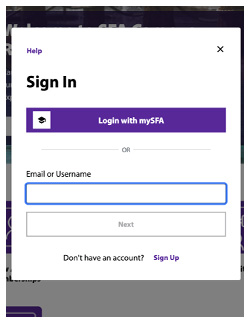
Step 1: Visit the Campus Rec program portal and click "Sign in."

Step 2: If you have mySFA credentials, "Login with mySFA" for quickest account setup. All other users should select "Sign up" for an account. Follow the prompts to complete your account creation.
Adding dependents
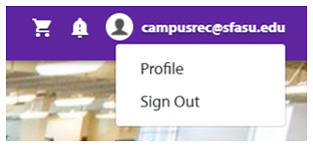
Step 1: Once logged in, click your username in the top navigation and go to your profile.
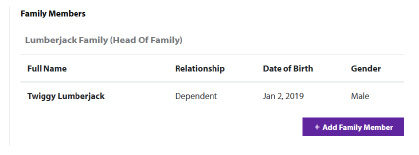
Step 2: Locate the "Family Members" box beneath your personal information and click "+ Add Family Member." Follow the prompts to add your dependent. Repeat as needed until all dependents are listed.
Registering for a program
Step 1: Finding the program
While many of our program webpages offer direct links to their registration information, it's helpful to understand how to navigate the portal and find your program of interest.

- On the home screen of the Campus Rec program portal, select the "Programs" icon.
- Choose the "Classifications" type to filter programs, or click the box to "Select All Classifications" to view all programs with open or upcoming registration.
- Click the appropriate program in the results and choose from the available upcoming dates.
Step 2: Selecting a date
You'll be prompted to sign in to continue registering for the program. (First time? Create a free account!)
Once you're signed in, you'll see the option to "Select" your desired program offering date. Successful selection is indicated when the button shows " Selected."
- Troubleshooting: The "Select" button does not work.
- registration is not open
- and/or there are not dependents on your profile that meet the age criteria for participation.
Step 3: Securing your registration
When you're ready, click "Register."
- Follow the prompts to select the appropriate family member(s) to register as the participant.
- Complete the required fields in the registration.
- Click "Proceed to Checkout."
- Continue through the payment process until you receive confirmation your payment was successful.